> ## Documentation Index
> Fetch the complete documentation index at: https://docs-dev-feat-acul-js-sdk-1-7-0-docs.mintlify.site/llms.txt
> Use this file to discover all available pages before exploring further.

> Learn how to store Flows integration credentials in the Vault to reference them during Forms runtime.

# Vaults

The vault lets you securely store secrets or common settings (for example: API keys, <Tooltip tip="Access Token: Authorization credential, in the form of an opaque string or JWT, used to access an API." cta="View Glossary" href="/docs/glossary?term=access+tokens">access tokens</Tooltip>, <Tooltip tip="Access Token: Authorization credential, in the form of an opaque string or JWT, used to access an API." cta="View Glossary" href="/docs/glossary?term=refresh+tokens">refresh tokens</Tooltip>) to authenticate requests with external services or integrations as vault connections.

<Callout icon="file-lines" color="#0EA5E9" iconType="regular">
  * There are connections that require the user to provide credentials (for example, with an Auth0 with a machine-to-machine (M2M) application, you generate an access token with an expiration time and a refresh token). The connection stores both tokens and generates a new access token before it expires.
  * There are external services that require authorizing scopes to generate API credentials. If you change the scopes, update the connection to those services to avoid connection issues.
  * When a connection is added, it is ready to use in your flows. Any updates to an existing connection will propagate automatically.
</Callout>

## Create and modify vault connections

Create and modify vault connections from the vault page or from the flow editor when an action requires credentials.

### Create vault connections from the vault page

Add a vault connection from the vault page by following these steps:

1. Open the Form editor by selecting **Auth0 Dashboard > Actions > Forms.**
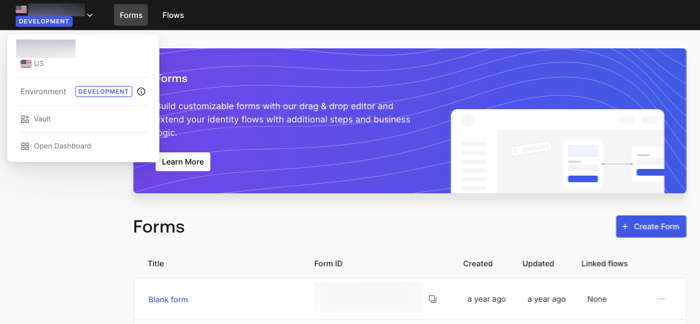
2. From the top left corner, select the tenant menu, and then **Vault** to open the vault page.
   <Frame>
     <img src="https://mintcdn.com/docs-dev-feat-acul-js-sdk-1-7-0-docs/oljSqUkY2AUuVAWT/docs/images/cdy7uua7fh8z/1sPNPKO6nuEDCuiYGRWSur/d85dc616170eaf2d7d5f321750863ccf/vault-connection.png?fit=max&auto=format&n=oljSqUkY2AUuVAWT&q=85&s=a61c316c3fd15cc6132f7497cb58e6ed" alt="Dashboard > Forms > Vault" data-og-width="700" width="700" data-og-height="324" height="324" data-path="docs/images/cdy7uua7fh8z/1sPNPKO6nuEDCuiYGRWSur/d85dc616170eaf2d7d5f321750863ccf/vault-connection.png" data-optimize="true" data-opv="3" srcset="https://mintcdn.com/docs-dev-feat-acul-js-sdk-1-7-0-docs/oljSqUkY2AUuVAWT/docs/images/cdy7uua7fh8z/1sPNPKO6nuEDCuiYGRWSur/d85dc616170eaf2d7d5f321750863ccf/vault-connection.png?w=280&fit=max&auto=format&n=oljSqUkY2AUuVAWT&q=85&s=b2aec90f802bad947c6e77039ee9e761 280w, https://mintcdn.com/docs-dev-feat-acul-js-sdk-1-7-0-docs/oljSqUkY2AUuVAWT/docs/images/cdy7uua7fh8z/1sPNPKO6nuEDCuiYGRWSur/d85dc616170eaf2d7d5f321750863ccf/vault-connection.png?w=560&fit=max&auto=format&n=oljSqUkY2AUuVAWT&q=85&s=553cd9fa198bbe90b2a78067ff42c754 560w, https://mintcdn.com/docs-dev-feat-acul-js-sdk-1-7-0-docs/oljSqUkY2AUuVAWT/docs/images/cdy7uua7fh8z/1sPNPKO6nuEDCuiYGRWSur/d85dc616170eaf2d7d5f321750863ccf/vault-connection.png?w=840&fit=max&auto=format&n=oljSqUkY2AUuVAWT&q=85&s=581ef8da47b1c7f62058a21a551ae089 840w, https://mintcdn.com/docs-dev-feat-acul-js-sdk-1-7-0-docs/oljSqUkY2AUuVAWT/docs/images/cdy7uua7fh8z/1sPNPKO6nuEDCuiYGRWSur/d85dc616170eaf2d7d5f321750863ccf/vault-connection.png?w=1100&fit=max&auto=format&n=oljSqUkY2AUuVAWT&q=85&s=e9aba93b58e3067cd716420cd4126f05 1100w, https://mintcdn.com/docs-dev-feat-acul-js-sdk-1-7-0-docs/oljSqUkY2AUuVAWT/docs/images/cdy7uua7fh8z/1sPNPKO6nuEDCuiYGRWSur/d85dc616170eaf2d7d5f321750863ccf/vault-connection.png?w=1650&fit=max&auto=format&n=oljSqUkY2AUuVAWT&q=85&s=a645e9e885b56740140346e8c976264e 1650w, https://mintcdn.com/docs-dev-feat-acul-js-sdk-1-7-0-docs/oljSqUkY2AUuVAWT/docs/images/cdy7uua7fh8z/1sPNPKO6nuEDCuiYGRWSur/d85dc616170eaf2d7d5f321750863ccf/vault-connection.png?w=2500&fit=max&auto=format&n=oljSqUkY2AUuVAWT&q=85&s=444702f42f2808264b13f5c00a95944c 2500w" />
   </Frame>
3. Select **Add Vault Connection**.
4. Select the desired action and **Continue**.
5. Add a vault **Connection name** and select **Continue**.
6. Enter the credentials.
   If you don't have the specific credentials, you can select **Create an empty connection** and add the credentials later. Empty connections have an orange icon indicating missing credentials.
7. select **Add Vault Connection**.

### Create vault connections from the flow editor

Add a vault connection from a flow action, for example: Twilio by following these steps:

1. Open the Flow editor by selecting **Auth0 Dashboard > Actions > Forms > Flows**
2. Select a flow and add a **Send SMS with Twilio** action.
3. From the **Vault connection** setting of the action, select the **+** Icon.

   <Frame>
     <img src="https://mintcdn.com/docs-dev-feat-acul-js-sdk-1-7-0-docs/w1vfdrI8cs5zil4F/docs/images/cdy7uua7fh8z/1AsaznhRKxm5LZxPlcbfUw/10e5a8af700aab909f5b03fcd266da7e/twilio-vault-connection.png?fit=max&auto=format&n=w1vfdrI8cs5zil4F&q=85&s=02a672cb84f41e9b6843e6b4faebcb20" alt="Dashboard > Forms > Vault " data-og-width="1104" width="1104" data-og-height="191" height="191" data-path="docs/images/cdy7uua7fh8z/1AsaznhRKxm5LZxPlcbfUw/10e5a8af700aab909f5b03fcd266da7e/twilio-vault-connection.png" data-optimize="true" data-opv="3" srcset="https://mintcdn.com/docs-dev-feat-acul-js-sdk-1-7-0-docs/w1vfdrI8cs5zil4F/docs/images/cdy7uua7fh8z/1AsaznhRKxm5LZxPlcbfUw/10e5a8af700aab909f5b03fcd266da7e/twilio-vault-connection.png?w=280&fit=max&auto=format&n=w1vfdrI8cs5zil4F&q=85&s=33447202adf57c4c30b26fdb3e141a28 280w, https://mintcdn.com/docs-dev-feat-acul-js-sdk-1-7-0-docs/w1vfdrI8cs5zil4F/docs/images/cdy7uua7fh8z/1AsaznhRKxm5LZxPlcbfUw/10e5a8af700aab909f5b03fcd266da7e/twilio-vault-connection.png?w=560&fit=max&auto=format&n=w1vfdrI8cs5zil4F&q=85&s=3f8f803e51be4ea6e27f1174c3cc7618 560w, https://mintcdn.com/docs-dev-feat-acul-js-sdk-1-7-0-docs/w1vfdrI8cs5zil4F/docs/images/cdy7uua7fh8z/1AsaznhRKxm5LZxPlcbfUw/10e5a8af700aab909f5b03fcd266da7e/twilio-vault-connection.png?w=840&fit=max&auto=format&n=w1vfdrI8cs5zil4F&q=85&s=180e15b28dc67617cf26c7290cc68541 840w, https://mintcdn.com/docs-dev-feat-acul-js-sdk-1-7-0-docs/w1vfdrI8cs5zil4F/docs/images/cdy7uua7fh8z/1AsaznhRKxm5LZxPlcbfUw/10e5a8af700aab909f5b03fcd266da7e/twilio-vault-connection.png?w=1100&fit=max&auto=format&n=w1vfdrI8cs5zil4F&q=85&s=b3a88d6a3aea0e490df2204c7b7f37f5 1100w, https://mintcdn.com/docs-dev-feat-acul-js-sdk-1-7-0-docs/w1vfdrI8cs5zil4F/docs/images/cdy7uua7fh8z/1AsaznhRKxm5LZxPlcbfUw/10e5a8af700aab909f5b03fcd266da7e/twilio-vault-connection.png?w=1650&fit=max&auto=format&n=w1vfdrI8cs5zil4F&q=85&s=e6b1d7e6bdd9d7579a73f5f6abb6cc39 1650w, https://mintcdn.com/docs-dev-feat-acul-js-sdk-1-7-0-docs/w1vfdrI8cs5zil4F/docs/images/cdy7uua7fh8z/1AsaznhRKxm5LZxPlcbfUw/10e5a8af700aab909f5b03fcd266da7e/twilio-vault-connection.png?w=2500&fit=max&auto=format&n=w1vfdrI8cs5zil4F&q=85&s=f252cda501f4fb9a27e6bb4529db3b07 2500w" />
   </Frame>
4. Add a vault **Connection name** and select **Continue**.
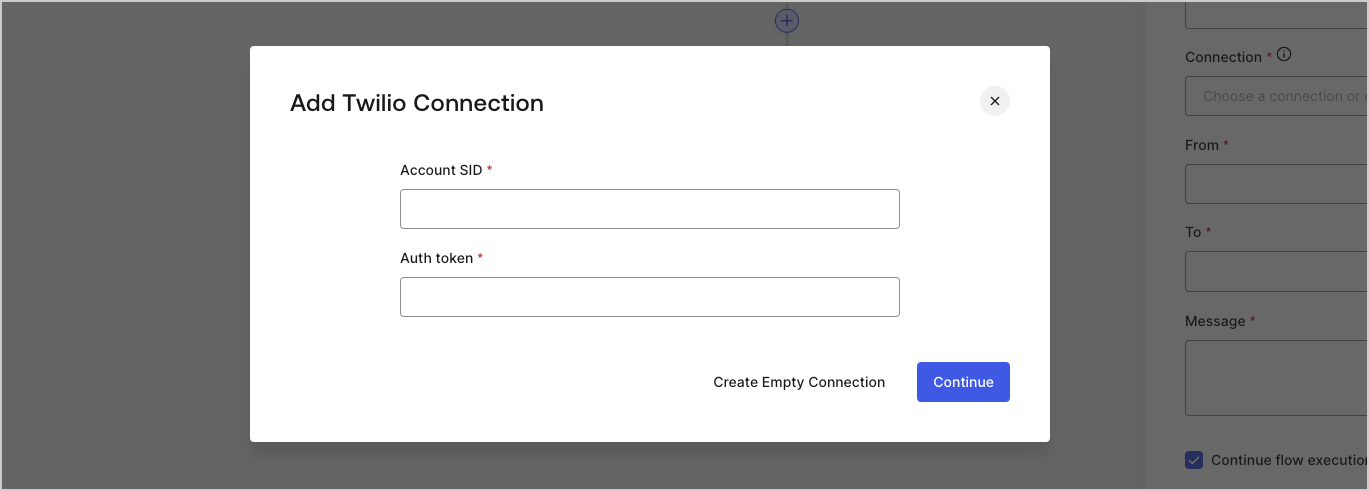
5. Enter the credentials.
   If you don't have the specific credentials, you can select **Create an empty connection** and add the credentials later. Empty connections have an orange icon indicating missing credentials.
   <Frame>
     <img src="https://mintcdn.com/docs-dev-feat-acul-js-sdk-1-7-0-docs/rYLaQRlMjU8RWsxq/docs/images/cdy7uua7fh8z/yobXanutPRCO3FWek8cOk/bc29e39fb8593cff35e2738234bfe6fe/twilio-vault-settings.png?fit=max&auto=format&n=rYLaQRlMjU8RWsxq&q=85&s=727cbb23c25f694274b78a126fa66f1f" alt="Dashboard > Forms > Vault > Twilio connection settings" data-og-width="1369" width="1369" data-og-height="491" height="491" data-path="docs/images/cdy7uua7fh8z/yobXanutPRCO3FWek8cOk/bc29e39fb8593cff35e2738234bfe6fe/twilio-vault-settings.png" data-optimize="true" data-opv="3" srcset="https://mintcdn.com/docs-dev-feat-acul-js-sdk-1-7-0-docs/rYLaQRlMjU8RWsxq/docs/images/cdy7uua7fh8z/yobXanutPRCO3FWek8cOk/bc29e39fb8593cff35e2738234bfe6fe/twilio-vault-settings.png?w=280&fit=max&auto=format&n=rYLaQRlMjU8RWsxq&q=85&s=fc873cd35ab0315e418991f9a556c8a6 280w, https://mintcdn.com/docs-dev-feat-acul-js-sdk-1-7-0-docs/rYLaQRlMjU8RWsxq/docs/images/cdy7uua7fh8z/yobXanutPRCO3FWek8cOk/bc29e39fb8593cff35e2738234bfe6fe/twilio-vault-settings.png?w=560&fit=max&auto=format&n=rYLaQRlMjU8RWsxq&q=85&s=336752dedc1bab4a23b05ed578538fb9 560w, https://mintcdn.com/docs-dev-feat-acul-js-sdk-1-7-0-docs/rYLaQRlMjU8RWsxq/docs/images/cdy7uua7fh8z/yobXanutPRCO3FWek8cOk/bc29e39fb8593cff35e2738234bfe6fe/twilio-vault-settings.png?w=840&fit=max&auto=format&n=rYLaQRlMjU8RWsxq&q=85&s=8b3636027764ab7c78063ef5097b638d 840w, https://mintcdn.com/docs-dev-feat-acul-js-sdk-1-7-0-docs/rYLaQRlMjU8RWsxq/docs/images/cdy7uua7fh8z/yobXanutPRCO3FWek8cOk/bc29e39fb8593cff35e2738234bfe6fe/twilio-vault-settings.png?w=1100&fit=max&auto=format&n=rYLaQRlMjU8RWsxq&q=85&s=9c1a995048d3c7b146dee4d1a726dce8 1100w, https://mintcdn.com/docs-dev-feat-acul-js-sdk-1-7-0-docs/rYLaQRlMjU8RWsxq/docs/images/cdy7uua7fh8z/yobXanutPRCO3FWek8cOk/bc29e39fb8593cff35e2738234bfe6fe/twilio-vault-settings.png?w=1650&fit=max&auto=format&n=rYLaQRlMjU8RWsxq&q=85&s=62311dd7c122ad27885fc3cb66f7ee13 1650w, https://mintcdn.com/docs-dev-feat-acul-js-sdk-1-7-0-docs/rYLaQRlMjU8RWsxq/docs/images/cdy7uua7fh8z/yobXanutPRCO3FWek8cOk/bc29e39fb8593cff35e2738234bfe6fe/twilio-vault-settings.png?w=2500&fit=max&auto=format&n=rYLaQRlMjU8RWsxq&q=85&s=f7c2ed1532750f1049b8a45fa5b06c6a 2500w" />
   </Frame>
6. Select **Add Vault Connection.**
